
This article only applies to those users that have access to the PaperCut printing management software, currently in use at the NHE corporate office.
If you find that you are attempting to print and your PaperCut account selection dialog box does not show, this may point to the PaperCut client not running properly in the background.
When you print, you should see an account selection box similar to the below:
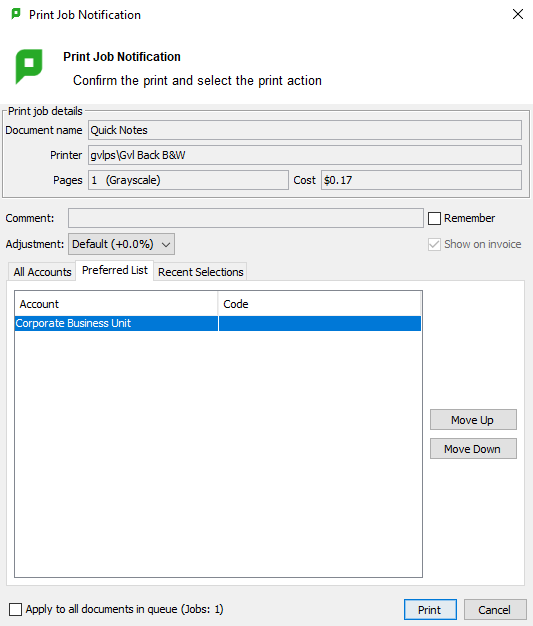
If this box does not appear, then typically it means that either the PaperCut/print server is experiencing connection difficulties, or that the PaperCut client software on your PC is not running. To check to see if the client software is running as expected, look for the PaperCut icon in your system's tray, near the clock on the bottom-right hand corner of the screen, highlighted in red as shown below:

If this icon is not present, either as shown above or in the hidden icon area accessible by the arrow as shown on the left, then that means the PaperCut client is not running on your PC. To open the PaperCut software, open your Start Menu (or search) and type in the word "PaperCut". This will give you a result for the "PaperCut MF Client" app that you can click to open, as shown below:

Once you have opened this app, you won't see anything right away, however if you turn your attention back to your system tray (bottom right-hand corner of the screen, near the clock) you should now see the PaperCut icon as shown earlier in this article. If you hover over this icon and it says "PaperCut" along with your username:
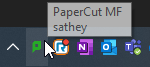
Then you are connected and ready to print! You may see some print notification windows pop-up from earlier attempts. These are still valid print jobs and you can continue where you left off.
We hope that this short troubleshooting guide helps in resolving some simple PaperCut issues. If you find that you are still having difficulties printing with PaperCut after following this guide, please feel free to submit a case here: https://nhe-inchelp.zendesk.com/hc/en-us/requests/new